Introduction
If you’ve worked in architecture, engineering, or construction long enough, you’ve probably heard this line more times than you’d like:
“We only have the PDF.”
No DWG files. No editable drawings. Just a scanned or exported PDF that someone needs turned into a working AutoCAD file that is fast, and without mistakes.
That’s where PDF to Drawing AutoCAD services come in. Not as a shortcut, and definitely not as a one-click solution, but as a careful process that turns static documents into drawings teams can actually use. Let’s break down how it really works, where things usually go wrong, and how to get accurate results without losing your sanity.
Why PDF to AutoCAD Conversion Is Still So Common
You’d think by now everyone would be sharing clean DWG files. But reality has other plans. PDFs show up because:
- Original CAD files are lost or outdated
- Projects change hands between consultants
- Older buildings were documented long before digital standards
- Clients prefer PDFs for sharing and approvals
The problem is simple. PDFs are great for viewing. Terrible for editing.
You can’t snap to lines. You can’t measure reliably. You can’t redesign anything without redrawing. And that’s exactly why converting PDF drawings into AutoCAD files becomes necessary, especially for renovations, extensions, or coordination work.
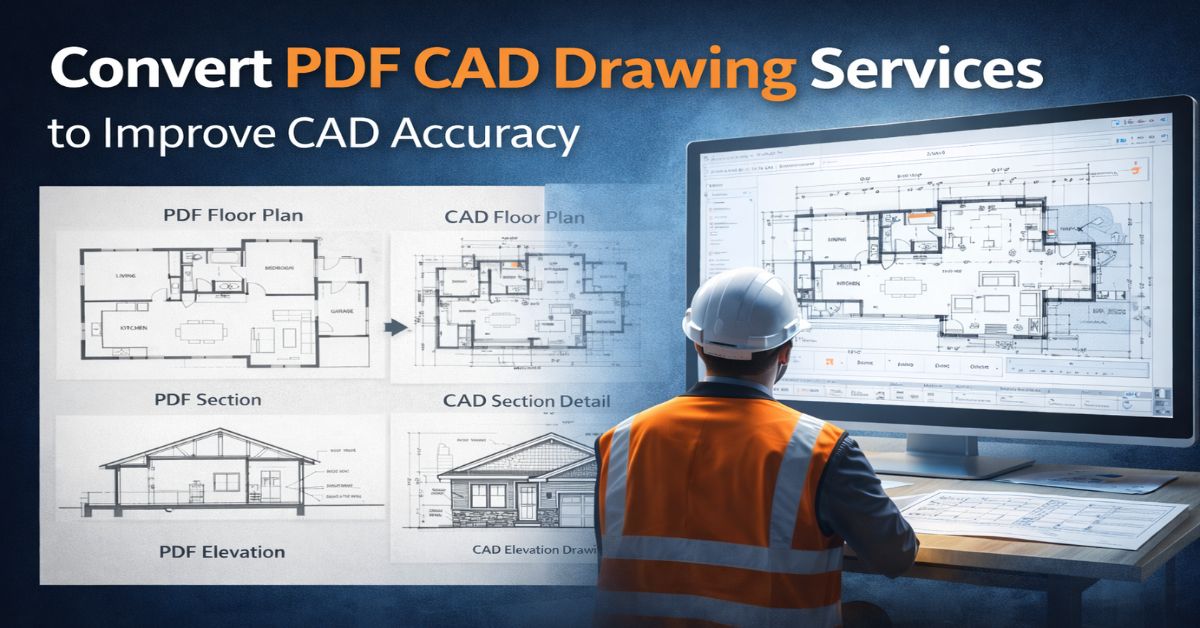
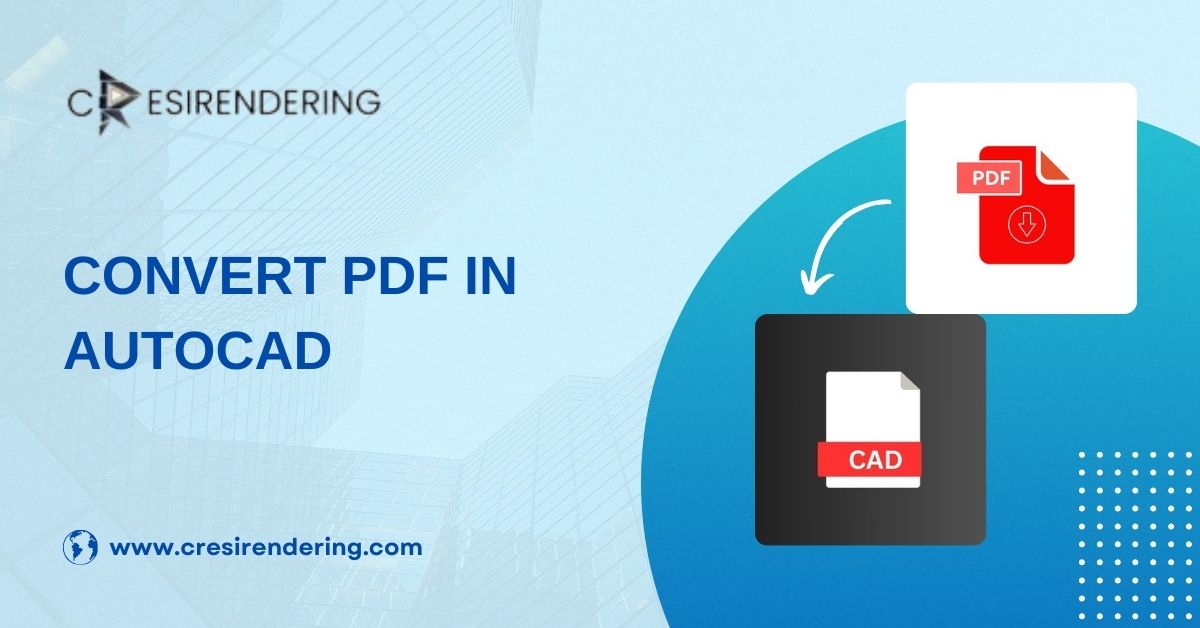
What “Convert PDF to Drawing AutoCAD” Actually Means
Let’s clear something up early.
PDF to AutoCAD conversion does not mean pressing a button and magically getting a perfect DWG file. Anyone who’s tried that knows how badly it can go.
What it really means is:
- Interpreting the information shown in the PDF
- Rebuilding it as accurate, editable CAD geometry
- Organizing layers, line types, and scales properly
In other words, it’s more reconstruction than conversion.
Types of PDFs You’ll Come Across
Not all PDFs are created equal, and this matters more than people realize.
1. Vector PDFs
These come directly from CAD software. Lines, text, and shapes exist digitally.
They’re easier to convert, but still messy — overlapping lines, broken text, and random layers are common.
2. Scanned PDFs
These are basically images of drawings. No real geometry underneath.
For these, everything has to be traced manually. Slower, yes — but often the only way to get reliable results.
Most real-world projects involve a mix of both.
The Real Workflow Behind PDF to AutoCAD Services
Here’s how accurate CAD conversion actually happens when done properly.
Step 1: Reviewing the PDF Carefully
Before opening AutoCAD, someone needs to study the PDF:
- Is the scale mentioned?
- Are dimensions readable?
- Are there distortions from scanning?
- What drawings are included — plans, sections, elevations?
Skipping this step leads to assumptions. And assumptions lead to errors.
Step 2: Setting Up the CAD File Correctly
This part is boring. And absolutely critical.
- Units are set correctly
- Base scale is established
- Reference grids or known dimensions are identified
Without this, even beautifully drawn lines will be wrong.
Step 3: Importing or Referencing the PDF
Depending on the PDF type:
- Vector PDFs may be imported and cleaned
- Scanned PDFs are attached as references
At this stage, the PDF acts like a background, similar to tracing over a drawing on a light table, just digital.
Step 4: Redrawing the Geometry
This is where most of the real work happens.
Walls, columns, openings, grids, stairs, everything is redrawn using native AutoCAD tools. Snapping is done carefully. Dimensions are checked constantly.
Good CAD technicians don’t just copy what they see. They question it.
Does this wall align across floors?
Does this dimension make sense structurally?
That judgment comes from experience, not software.
Step 5: Layering and Line Control
A usable AutoCAD file isn’t just accurate it is organized.
That means:
- Separate layers for walls, doors, windows, text, dimensions
- Consistent line weights
- Clean, readable output for plotting
This is what allows other teams to actually work with the drawing instead of fighting it.
Step 6: Internal Checks and Corrections
Before delivery, drawings are reviewed:
- Dimensions cross-checked
- Alignment verified
- Missing information flagged
This step often catches issues that were invisible at first glance.
Where PDF to AutoCAD Conversion Is Most Useful?
These services are especially valuable for:
- Renovation and retrofit projects
- Tenant fit-outs
- As-built documentation
- Coordination with consultants
- Legacy buildings with missing CAD files
Basically, anywhere design decisions depend on understanding existing drawings.
Why Human Interpretation Still Matters
Here’s the honest truth. Software such as AutoDesk AutoCAD can help. Tools can speed things up. But accurate PDF to AutoCAD conversion still depends on people who understand drawings, construction logic, and design intent.
A wall isn’t just a line.
A section isn’t just a cut.
Knowing that difference is what separates usable drawings from pretty but useless files.
Conclusion
Converting PDFs into AutoCAD drawings is less about technology and more about understanding. It’s about taking static information and rebuilding it into something flexible, accurate, and ready for real design work.
When done properly, Scan to CAD services give teams a reliable foundation, one that supports planning, coordination, and confident decision-making. In projects where original files are missing or outdated, this process isn’t just helpful. It’s often the only way forward.